Questions? Comments? Sound off below, and don’t forget to Like/Share!
Showing posts with label Child. Show all posts
Sunday, August 29, 2010
Pic-A-Week, Episode 5
As many of you know, I've been super-busy over the past few weeks with a newborn at home. However, I've managed to get some editing done in the wee hours of the morning on several occasions, so here's the fruits of my labor. Enjoy!


Questions? Comments? Sound off below, and don’t forget to Like/Share!
Saturday, July 31, 2010
Pic-A-Week, Episode 4
I’ve been extremely busy lately preparing for the arrival of the newest addition to my family. She will be here any day now, so it's been quite hectic around my house, to say the least!
Of course I’ve managed to squeeze a few photo shoots in since my last update, and because I’ve been extremely delinquent in updating my blog, I’d like to use this post to sort of play “catch up”.
You'll notice several maternity shots below, which collectively represent a fairly groundbreaking step for me, since I've never actually done maternity photography before. And as you'll see in the very last shot, I took full advantage of the fact that I had not one but TWO mommies-to-be at my studio on the same day! How often does THAT happen?
Anyway, enjoy, and please share your comments/reactions below. I absolutely *love* hearing your feedback!
Of course I’ve managed to squeeze a few photo shoots in since my last update, and because I’ve been extremely delinquent in updating my blog, I’d like to use this post to sort of play “catch up”.
You'll notice several maternity shots below, which collectively represent a fairly groundbreaking step for me, since I've never actually done maternity photography before. And as you'll see in the very last shot, I took full advantage of the fact that I had not one but TWO mommies-to-be at my studio on the same day! How often does THAT happen?
Anyway, enjoy, and please share your comments/reactions below. I absolutely *love* hearing your feedback!
| ||||
| ||||
| ||||
| ||||
| ||||
| ||||
| ||||
| ||||
| ||||
|
- Share this on Facebook
- Tweet This!
- Post this to MySpace
- Subscribe to this Blog
- Share this on del.icio.us
- Digg this!
- Share this on Linkedin
- Stumble upon something good? Share it on StumbleUpon
- Share this on Reddit
- Add this to Google Bookmarks
- Share this on FriendFeed
- Share this on Mixx
- Buzz up!
- Share this on Technorati
Wednesday, June 2, 2010
Pic-A-Week, Episode 2 | NEW TAMPA BABY PHOTOGRAPHER
This is a personal family shot that I captured over Memorial Day weekend. I thought it was pretty cute when I first converted it to black & white, but based on the overwhelmingly positive response I've gotten on my Facebook fan page, I am now considering adding it to my professional portfolio as well.
I have to give props to my mother-in-law for assisting with the posing, because getting two energetic toddlers to pause for a sweet moment like this certainly takes more than just one person. Plus, you have to worry about one or both of them falling off the dock, so there are some additional safety concerns as well.
I'm always my own worst critic, so when I look at this shot I still wish my nephew's head was turned a little bit more toward my daughter. I also wonder if perhaps a slightly shallower depth-of-field might have produced a more pleasing result. But in the end I think it still works pretty well, and I'm sure I'll be making a print or two from it.
So what are your thoughts? Do you think I'm being overly critical with my assessment of this shot's weaknesses? Are there other areas where you can see room for improvement? Would more of a sepia tone work better? Please sound off below.
- Share this on Facebook
- Tweet This!
- Post this to MySpace
- Subscribe to this Blog
- Share this on del.icio.us
- Digg this!
- Share this on Linkedin
- Stumble upon something good? Share it on StumbleUpon
- Share this on Reddit
- Add this to Google Bookmarks
- Share this on FriendFeed
- Share this on Mixx
- Buzz up!
- Share this on Technorati
Sunday, March 28, 2010
Before & After, Episode 10 | NEW TAMPA BABY CHILD PHOTOGRAPHER
Here's a shot I grabbed of my daughter earlier today. Since you guys made it clear through your responses to my recent survey that you want more photography and post-processing tips, I decided to change things up this time around and include much more granular detail about how the shot was captured and my post-processing workflow for it. So here goes....
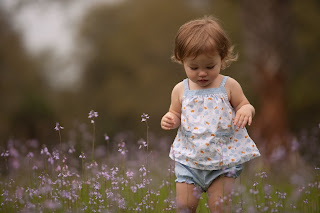
First of all, to get the shot, I was lying on my stomach near a patch of purple wildflowers we found down at a local park. I had my 70-200 2.8L lens mounted on my Canon 1Ds Mark II, and I was shooting wide open at 2.8, zoomed all the way in at 200mm. I asked my wife to call my daughter to walk through the flowers, and amazingly everything worked out just as I had envisioned it. I have to admit that it was a real treat to have my wife there assisting me, because when it comes to pics of my daughter I usually find myself in the unenviable position of trying to *create* the moments as well as *capture* them. Today I had the luxury of focusing on the technical stuff, and as a result the frames I got were MUCH better than usual.
Here's the SOOC (straight out of camera) image, which you can click for a larger view:
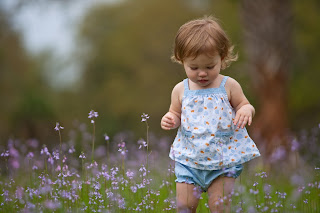
Next up was a bit of tweaking in Lightroom, which included adjusting the White Balance, adding a small amount of Fill Light, increasing the Blacks by 6, Clarity by 21, and Vibrance by 38. I also made some minor tweaks to the Tone Curve. Lastly, I used the Adjustment Brush to increase the exposure on her face just a tad. At this point I was ready to pull the file over into Photoshop. Here's what the image looked like with the Lightroom adjustments (click it for a larger view):
In Photoshop, below are the primary techniques I used to get the final product. There may have been a few very minor tweaks beyond what is listed here, but these are the steps I tend to include in most of my outdoor portraiture. By the way, I'm sure you've noticed that a good majority of pro photographers tend to shy away from revealing the "secret sauce" that makes their photos really pop. However, I really want to help you get to the next level with your post processing, so that's why I'm laying this out for everyone to see. As my photographer/idol Zack Arias recently told me at Photoshop World, "we all stand on each others' shoulders". So true, so true.
Oh yeah....if you're a Mac user, please substitute "Ctrl" for "Command" and "Alt" for "Option" (but you knew that already, right?) Anyway, here we go:
So here's the final before & after image (roll your mouse cursor over the top to see the changes). Please let me know if you have any questions, and if you enjoyed this post, please comment below or on Facebook. Thanks!

First of all, to get the shot, I was lying on my stomach near a patch of purple wildflowers we found down at a local park. I had my 70-200 2.8L lens mounted on my Canon 1Ds Mark II, and I was shooting wide open at 2.8, zoomed all the way in at 200mm. I asked my wife to call my daughter to walk through the flowers, and amazingly everything worked out just as I had envisioned it. I have to admit that it was a real treat to have my wife there assisting me, because when it comes to pics of my daughter I usually find myself in the unenviable position of trying to *create* the moments as well as *capture* them. Today I had the luxury of focusing on the technical stuff, and as a result the frames I got were MUCH better than usual.
Here's the SOOC (straight out of camera) image, which you can click for a larger view:

Next up was a bit of tweaking in Lightroom, which included adjusting the White Balance, adding a small amount of Fill Light, increasing the Blacks by 6, Clarity by 21, and Vibrance by 38. I also made some minor tweaks to the Tone Curve. Lastly, I used the Adjustment Brush to increase the exposure on her face just a tad. At this point I was ready to pull the file over into Photoshop. Here's what the image looked like with the Lightroom adjustments (click it for a larger view):

In Photoshop, below are the primary techniques I used to get the final product. There may have been a few very minor tweaks beyond what is listed here, but these are the steps I tend to include in most of my outdoor portraiture. By the way, I'm sure you've noticed that a good majority of pro photographers tend to shy away from revealing the "secret sauce" that makes their photos really pop. However, I really want to help you get to the next level with your post processing, so that's why I'm laying this out for everyone to see. As my photographer/idol Zack Arias recently told me at Photoshop World, "we all stand on each others' shoulders". So true, so true.
Oh yeah....if you're a Mac user, please substitute "Ctrl" for "Command" and "Alt" for "Option" (but you knew that already, right?) Anyway, here we go:
- To add a bit of contrast, create a Black & White adjustment layer, change the Blend Mode to Soft Light, adjust the color sliders to taste, and reduce layer opacity to around 20%.
- To add even more contrast, perform a "Stamp Visible" (which creates a flattened copy of all of your layers at the top of the stack) by pressing Ctrl+Alt+Shift+E. Apply a Gaussian Blur at 5 px, change the blend mode to Soft Light, and and reduce layer opacity to around 30%. Then mask out your subject (with a reduced opacity brush, if desired).
- To lighten the subject a little, and make him/her "pop" a little more off the background, perform a "Stamp Visible" by pressing Ctrl+Alt+Shift+E, desaturate this layer (Ctrl+Shift+U), change the Blend Mode to Screen, and reduce layer opacity to about 25-30%. Then mask out the background (or alternatively you can start with a black mask and reveal the subject with white).
- Add a bit of midtone contrast-- perform a "Stamp Visible" by pressing Ctrl+Alt+Shift+E, then apply an Unsharp Mask with Amount at 60%, Radius at 20 pixels, and Threshold at 0. Reduce layer opacity to around 30-35%.
- Get your colors nice and saturated by performing a "LAB Mode Color Pop". This basically involves flipping over into LAB Mode, creating a Curves adjustment layer, pulling the ends of the line in, and then flipping back into RGB mode. You end up with a super-saturated layer that you can adjust the opacity of, and/or mask out certain parts. You will almost always have to mask out your subject's skin, because it'll be a nasty orangish/reddish mess. There are actually many different methods for popping colors in LAB Mode....click here for 5 of them.
- Lastly, finish off with some High Pass sharpening-- perform a "Stamp Visible" by pressing Ctrl+Alt+Shift+E, then change the layer's blend mode to Soft Light. Go to Filter->Other->High Pass and set the radius to about 5 or 6 pixels. Then reduce the opacity of this layer to taste.
So here's the final before & after image (roll your mouse cursor over the top to see the changes). Please let me know if you have any questions, and if you enjoyed this post, please comment below or on Facebook. Thanks!
- Share this on Facebook
- Tweet This!
- Post this to MySpace
- Subscribe to this Blog
- Share this on del.icio.us
- Digg this!
- Share this on Linkedin
- Stumble upon something good? Share it on StumbleUpon
- Share this on Reddit
- Add this to Google Bookmarks
- Share this on FriendFeed
- Share this on Mixx
- Buzz up!
- Share this on Technorati
Saturday, February 6, 2010
Before & After, Episode 9 | WELSEY CHAPEL FAMILY PHOTOGRAPHY
I'd like to try something new this time around, in hopes that the differences between the before and after images will be more readily apparent. In the past, I've always shown the before & afters side by side, but it was often difficult to pick up on all of the subtle nuances and minor differences between the two. As a photographer who regularly spends hours upon hours in Photoshop, these minor differences in color and tone quite simply jump off the page at me, but I also realize that to the average pair of eyes such things are not quite as obvious. So this new method of displaying the images should make things much clearer for everyone.
The image I chose for this episode turned out to be one of my favorites of 2009, once it was completely transformed in Photoshop from a muddy, dark, and underexposed mess into a truly vibrant and heartwarming shot. It's really amazing the things you can do to rescue a bad photograph sometimes, and I think this is probably the best example in my entire portfolio.
When I'm out shooting with a client, my goal is of course to capture the absolute best images possible, and in the best light. Sometimes, however, the light changes unexpectedly (e.g. the sun goes behind, or pops out from behind a cloud), and it can fool the camera into severely under or overexposing the image. Shortly after this image was taken, and largely in response to the frustration I experienced while trying to edit it, I began shooting exclusively with my camera in Manual mode. This technique certainly isn't for the faint-hearted, but it really helps prevent such situations from occurring.
Although this fairly remarkable transformation just goes to show how much leeway can be enjoyed by a bad photographer who happens to be handy with Photoshop [pointing the finger squarely at myself], it should be noted that this particular example is truly the exception rather than the rule.
Anyhoo, to see the before & after, simply move your mouse pointer over the picture and then back off again. Wash, rinse, repeat. Enjoy!
The image I chose for this episode turned out to be one of my favorites of 2009, once it was completely transformed in Photoshop from a muddy, dark, and underexposed mess into a truly vibrant and heartwarming shot. It's really amazing the things you can do to rescue a bad photograph sometimes, and I think this is probably the best example in my entire portfolio.
When I'm out shooting with a client, my goal is of course to capture the absolute best images possible, and in the best light. Sometimes, however, the light changes unexpectedly (e.g. the sun goes behind, or pops out from behind a cloud), and it can fool the camera into severely under or overexposing the image. Shortly after this image was taken, and largely in response to the frustration I experienced while trying to edit it, I began shooting exclusively with my camera in Manual mode. This technique certainly isn't for the faint-hearted, but it really helps prevent such situations from occurring.
Although this fairly remarkable transformation just goes to show how much leeway can be enjoyed by a bad photographer who happens to be handy with Photoshop [pointing the finger squarely at myself], it should be noted that this particular example is truly the exception rather than the rule.
Anyhoo, to see the before & after, simply move your mouse pointer over the picture and then back off again. Wash, rinse, repeat. Enjoy!
- Share this on Facebook
- Tweet This!
- Post this to MySpace
- Subscribe to this Blog
- Share this on del.icio.us
- Digg this!
- Share this on Linkedin
- Stumble upon something good? Share it on StumbleUpon
- Share this on Reddit
- Add this to Google Bookmarks
- Share this on FriendFeed
- Share this on Mixx
- Buzz up!
- Share this on Technorati
Friday, January 22, 2010
Ligman Family - 11/22/09 | WESLEY CHAPEL BABY FAMILY PHOTOGRAPHER
The Ligmans brought their adorable son, Jack, over for a family shoot a couple of months ago. We grabbed a few studio shots and then headed outside to let Jack burn off some of that endless energy! I had an absolute blast rolling around in the grass with him and making a total fool of myself! But it was all worth it, as Jack gave us some of his best smiles of the day, and we ended up getting some great shots of him with Mom and Dad. Enjoy!
- Share this on Facebook
- Tweet This!
- Post this to MySpace
- Subscribe to this Blog
- Share this on del.icio.us
- Digg this!
- Share this on Linkedin
- Stumble upon something good? Share it on StumbleUpon
- Share this on Reddit
- Add this to Google Bookmarks
- Share this on FriendFeed
- Share this on Mixx
- Buzz up!
- Share this on Technorati
Sunday, December 6, 2009
Woodall Family - 11/14/09 | NEW TAMPA WESLEY CHAPEL PHOTOGRAPHER
I am beginning to do quite a bit more family photography lately, and not only that, but I'm also doing it with natural light (as opposed to artifical light, [i.e. flashes/strobes, such as those used in studio photography]). This is a major departure for me, because I'm used to being able to control every aspect of the light. However, when you're outdoors, Mother Nature prevails.
As a result of this new direction in my photography, I've had to completely overhaul my Photoshop workflow, because I think it's really important to successfully capture the rich, vibrant colors often encountered in nature. I'm learning new techniques for making colors really "pop", and I've discovered some great ways to brighten skin and increase tonal contrast.
Anyways, enough technical jargon.....here are some of my favorite shots from a recent shoot I did with the Woodall family. Enjoy, and please leave me a comment if you like this look.
As a result of this new direction in my photography, I've had to completely overhaul my Photoshop workflow, because I think it's really important to successfully capture the rich, vibrant colors often encountered in nature. I'm learning new techniques for making colors really "pop", and I've discovered some great ways to brighten skin and increase tonal contrast.
Anyways, enough technical jargon.....here are some of my favorite shots from a recent shoot I did with the Woodall family. Enjoy, and please leave me a comment if you like this look.
- Share this on Facebook
- Tweet This!
- Post this to MySpace
- Subscribe to this Blog
- Share this on del.icio.us
- Digg this!
- Share this on Linkedin
- Stumble upon something good? Share it on StumbleUpon
- Share this on Reddit
- Add this to Google Bookmarks
- Share this on FriendFeed
- Share this on Mixx
- Buzz up!
- Share this on Technorati
Subscribe to:
Posts (Atom)
About Me
- Tampa Band Photos
- Tampa, FL, United States
- I'm a commercial photographer in Tampa, FL specializing in band & musician promos, CD covers, press kits, posters, and the like. Please feel free to check out my website/blog using the link below, and give me a shout if I can be of service to you!
http://TampaBandPhotos.com